 RecBeam
Show it once. Move work forward.
Record your screen, camera and voice, then share a link in minutes. RecBeam helps teams explain ideas, report issues and guide customers without another meeting.
Starter is free. No credit card required.
- Screen, tab, window or camera
- Private share link in one click
- Screenshots with an annotation editor
Works where your team already works
- Google Chrome
- GitHub
- Linear
- Jira
- Slack
- Google Sign-In
- Cloudflare
From idea to shared link in three steps
No editing suite, no export queue, no meeting invite. Record, let RecBeam upload, and send the link.
Record
Choose your screen, window or browser tab. Add your camera and microphone when you want a more personal explanation.
Upload
When recording ends, RecBeam securely uploads your video and keeps a temporary recovery copy only when an upload needs attention.
Share
Copy your link, send it anywhere and manage the recording from your cloud library.
Record without interrupting your workflow
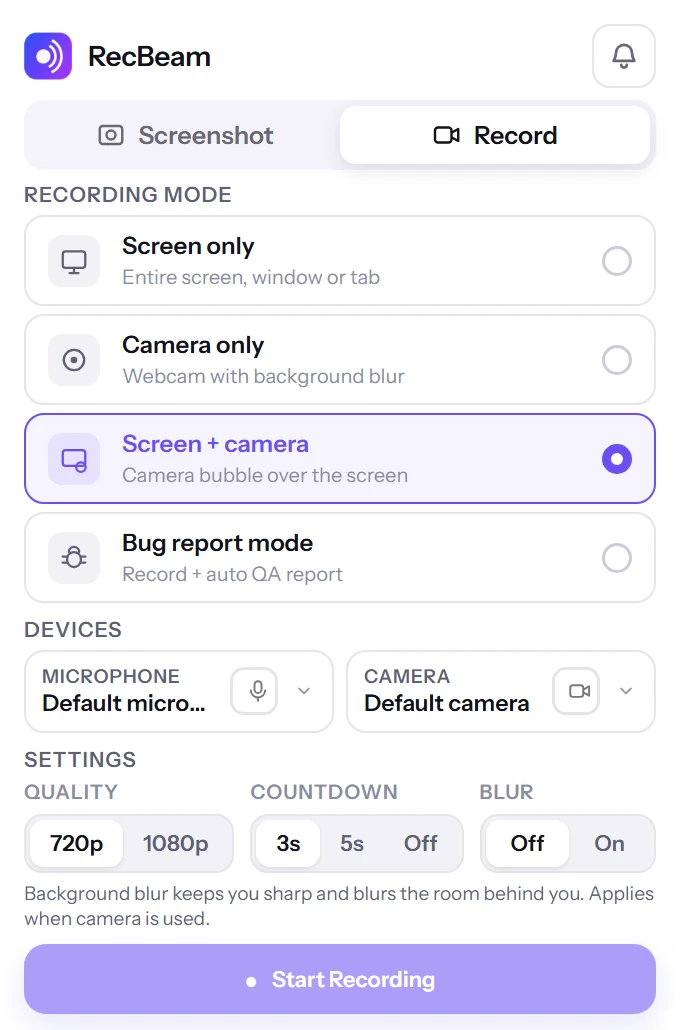
Pick exactly what you need to show, then control the recording from a floating dock that stays out of your way.
- Screen only, screen and camera, or camera only
- Pause and resume without losing your take
- Mute your microphone or hide your camera mid-recording
- Floating Picture-in-Picture controls stay visible while you work
- 5-minute Starter limit, no limit on Business
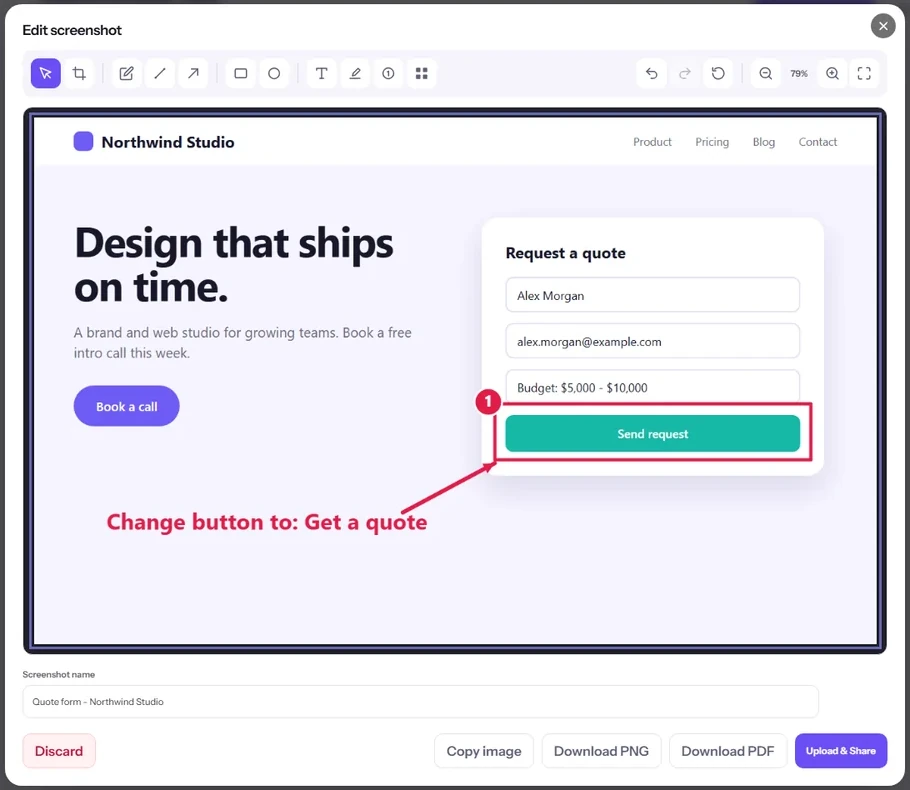
Capture, mark up and share
Capture the visible area, a full page, a selected area or your whole screen, then mark up exactly what matters before you share it.
- Crop, draw, and add arrows, lines, rectangles and ellipses
- Number your steps, add text and highlight what matters
- Blur or pixelate sensitive details before sharing
- Copy the image, download a PNG or PDF, or upload and share a link
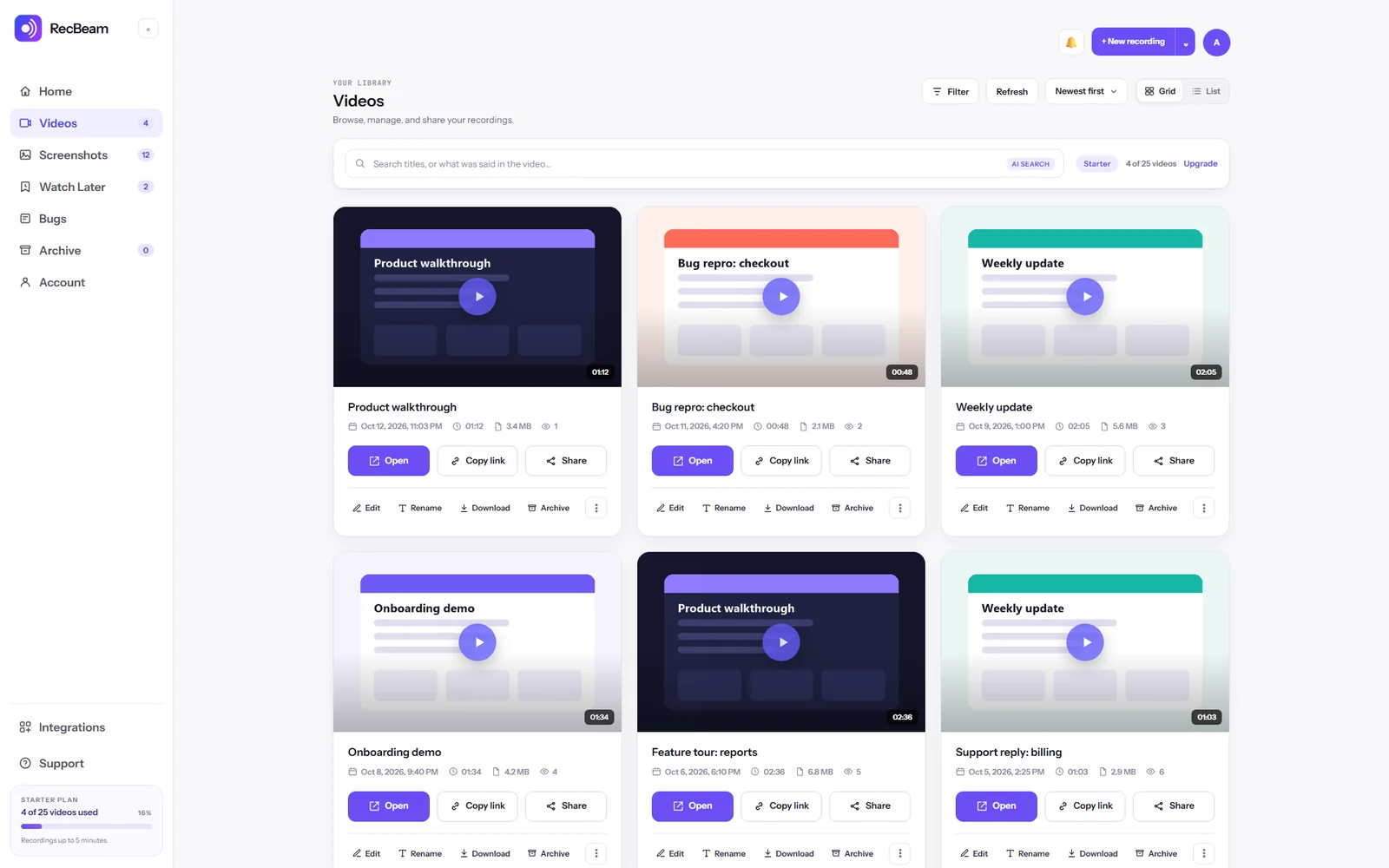
Every recording, organized
Your videos and screenshots live in one library you can search, sort and filter. Rename, archive, download or delete from the same screen, and copy a share link in one click.
- Search titles, and what was said in the video
- Grid or list view, newest first, with filters
- Open, copy link, share, rename, download or archive
- Watch Later keeps what you want to come back to
Record a bug. Get a written report. File it as an issue.
Bug Report mode listens while you record, detects the bugs you describe, and turns them into reports you can push to the tools your team already uses.
Bug Report mode
AI detects bugs from your speech and builds an automatic QA report from the recording.
Push to your tracker
Send issues to GitHub, Linear and Jira straight from the Bugs inbox.
Summaries and recaps
Summary, chapters, action items and meeting recaps on every recording.
Start free. Grow when your team does.
Built for work that is easier to show than explain
Engineering & QA
Record reproducible bug reports and share regression evidence.
Explore Engineering & QA →Customer Support
Resolve issues with visual, reusable walkthroughs.
Explore Customer Support →Product & Design
Share feedback and reviews with full context.
Explore Product & Design →Sales
Make every product explanation more personal.
Explore Sales →Education & Training
Teach once, let people learn when they're ready.
Explore Education & Training →Internal Communication
Replace unnecessary meetings with clear updates.
Explore Internal Communication →Simple plans that scale with your team
Start free. Upgrade when you need longer recordings and a bigger library.
Starter
Everything you need to record and share.
$0free, forever
Get RecBeam- 25 videos, up to 5 minutes each
- 720p recording
- 100 screenshots with the annotation editor
- Comments, reactions and share links
Business
Unlimited recording, editing and access control.
$12per month
Upgrade to Business- Unlimited videos and length
- 1080p and unlimited screenshots
- Trim, clips, overlays and captions
- Embed codes and access control
Business + AI
Record a bug. Get a written report.
$20per month
Upgrade to Business + AI- Everything in Business
- Bug Report mode with AI detection
- Push issues to GitHub, Linear and Jira
- Summaries, chapters and action items
See the full pricing page for a complete comparison. Prices are in USD; applicable taxes may be added by our payment provider.
Your content stays under your control
RecBeam keeps ownership and management of your recordings tied to your authenticated account.
- Sign in with Google — no separate password to manage
- Only the account that owns a recording can rename, archive or delete it
- A temporary local recovery copy is kept only until an upload is verified
- Deletion is permanent for both videos and screenshots
- Shared links are unlisted — anyone with the exact link can view it
- Billing is handled by Lemon Squeezy; RecBeam never stores your complete card details
Frequently asked questions
What can RecBeam record?
RecBeam can record your entire screen, a single window, or one browser tab, with optional camera and microphone. You can combine screen and camera, or record camera only.
Does RecBeam work in Chrome?
Yes. RecBeam is a Chrome extension built specifically for Chrome and other Chromium-based browsers that support Manifest V3 extensions.
Where are recordings stored?
Recordings are written to your device first as a temporary safety copy, then uploaded to your RecBeam account. Video and image files are stored on Cloudflare R2, with metadata such as title and duration stored on Cloudflare D1.
Can I download my videos?
Yes. Every recording and screenshot in your cloud library can be downloaded at any time from RecBeam's Videos or Screenshots view.
Can I delete a shared recording?
Yes. Permanently deleting a recording or screenshot immediately stops its public link from working.
How long can I record?
Starter recordings are limited to 5 minutes. Business and Business + AI recordings have no length limit.
How many videos can I store?
Starter includes 25 active cloud videos. Business and Business + AI include unlimited videos. On Starter, archived videos still count toward the limit; deleted videos free a slot immediately.
Can I capture screenshots?
Yes. Capture your current tab, or a selected window or screen, then crop, draw, add arrows and shapes, add text, highlight, or pixelate before sharing.
Who can view a shared link?
Anyone with the exact link can view that recording or screenshot without signing in. Links are unlisted, not indexed or discoverable by browsing, but they are not password-protected.
How does Business billing work?
Business is $12 per user/month, or $120 per user billed annually. Business + AI is $20 per user/month, or $200 per user billed annually. Billing is handled securely by Lemon Squeezy; RecBeam never stores your full card details.
How do I cancel?
Open Manage Subscription from your RecBeam account to cancel any time through Lemon Squeezy's Customer Portal.
What happens after cancellation?
Business access continues through the end of your paid billing period, then your account returns to Starter. Nothing is deleted — existing videos and screenshots remain accessible.